Showing posts with label FlashDevelop. Show all posts

30 Aug 2011

Chapter 3: Graphics and collisions

Welcome back. 
As usual, you can grab the files at the end of the previous chapter.

This tutorial will cover:
  • Using the Graphics class to draw.
  • Applying filters.
  • Using ternary operators.
  • Collision detection.


Ok, let's practice a bit more with the Graphics class. 
Remember that we used it to draw our button? This time we'll use it to draw the ball, so let's create a class for the ball (Ball.as). 


As usual, add a listener for the ADDED_TO_STAGE event and a function for it. 

package{
        import flash.display.Sprite;
        import flash.display.Graphics;
        import flash.events.Event;
    
   public class Ball extends Sprite{
       
                           
     private function go(e:Event):void {
        removeEventListener(Event.ADDED_TO_STAGE,go);
       } 

    }
}

Now let's draw the ball, for this we will use the drawCircle function of the Graphics class. The drawCircle function takes three arguments: x, y and radius.


A good thing to do when you have a lot of code is to make some constants that handle determined stuff, so you can quickly find the values and change them if you need to. 


Make two constants: 

private const RADIUS:int = 12;
private const COLOR:uint = 0x01A6B2;

Constants are commonly capitalized. 
Colors are represented by "0x" followed by the hex value of the color. You can find this value by googling for "hex color chart" or similar stuff.  
The uint datatype represents unsigned integers, meaning it won't accept negative values.

Now let's configure the graphics:
We'll use the lineStyle function. It takes a lot of arguments, but for now I'll only talk about the first three: (thickness, color, alpha). 
They are pretty self explainitory. If you want more info, you can always read the LiveDocs that I linked at the start. 


Anyway, on your "go" function, add the following:

        graphics.lineStyle(2, COLOR, 1);

See? We used our COLOR constant, so if we ever want to change the color of the circle, we'd only need to change the COLOR value instead of looking around our code trying to find the line that handles it. 


The alpha value is automatically set to 1, so there's no real need to define it again, I just did it to give an example.


Now set the fill color. The beginFill method only takes two argumens: (color, alpha). And just as with lineStyle, alpha is automatically set to one, so all we'll do is:

        graphics.beginFill(COLOR);

Now that everything is configured, let's draw the ball:

        graphics.drawCircle(0, 0, RADIUS);

Now head to the PongGame class and add the following below the "addChild(paddle)" line on your "go" function:

        ball = new Ball();
        addChild(ball);  
        ball.x = stage.stageWidth * .5;
        ball.y = stage.stageHeight * .5;  

Also declare the variable for the ball:


        private var ball:Ball; 

Now run a test. 
We added the ball to the stage and centered it. 
The Ball class used the Graphics class to draw a circle and fill it with the color of our choice.


Well, we got the ball, but let's be fair, it looks lame.
Let's add a simple effect to it. 
For this, we'll be using two filter classes: BevelFilter and GlowFilter.
I picked these because, from my point of view, they're the simplest (others use matrixes and arrays, and the tutorial hasn't covered that yet). 


Let's declare and define our filters, as well as another color:

private const COLOR2:uint = 0x45FCFF;
private const BEVEL:BevelFilter = new BevelFilter(4, 90, COLOR2, 1, COLOR2, 1, 10, 10, 1, 1, BitmapFilterType.INNER, true);
private const GLOW:GlowFilter = new GlowFilter(0xFFFFFF, .6, 0, 0, 5, 1, true);

Most of these arguments refer to colors, alpha values, blur and strength. Please refer to the LiveDocs to see all the information about filters, as talking about them would require a whole chapter.


Now go back to the go function and add the following line:

        filters = [BEVEL, GLOW];

This will apply to the circle the filters that we just created.
Run a test and take a look at the new ball.
Feel free to modify the filters and the colors until you find a combination that you like. 


Ok, now let's allow the players to decide when the ball starts moving. On the PongGame class, add the following below the ball.y = ... line.

 stage.addEventListener(KeyboardEvent.KEY_DOWN, releaseBall);

And make the function:


private function releaseBall(e:KeyboardEvent):void{
        stage.removeEventListener(KeyboardEvent.KEY_DOWN, releaseBall);  
        addEventListener(Event.ENTER_FRAME, enterFrame);
                }  

So... our new function will remove the keyboard listener and add an enter frame listener. If you remember from the previous chapters, an enter frame function will run every frame, (that's 30 times each second on our game). 


And what do we want to happen every frame? 
First of all, let's make the ball start moving towards the player, to do that, we'll have to declare some variables: 

                private var speedX:Number;
                private var speedY:Number;
                private var angle:Number;
                private var ballSpeed:int=5;

As you see, all of these variables will be related to the movement of the ball. 
Head back to the line where we added the enter frame listener. Let's set the starting angle for the ball: 

             angle = Math.random() > .5?90:270;

So... what does that mean? 
It's really simple: First we're using the "random" method of the Math class. This method returns a random number between 0 and 0.99. 
The question mark symbol works as a conditional, so... Math.random()>.5? is exactly the same as if (Math.random()>.5)


The things after the question mark are the things to do depending on the evaluation of the condition. If it evaluates as true, the statement between the question mark and the colon will run, if not, the one after the colon will. 


So, translated, we're telling it to pick a random number between 0 and 0.999 and if that number is bigger than .5, we want it to set the angle to 90 (down), else, if the random number is lower than .5, it will set the angle to 270 (up)... that way we just implemented a method to make the ball move in a random direction everytime a new game starts, that way both players have a chance to hit first. 

Now let's make that enterFrame function: 

      private function enterFrame(e:Event):void { 
        speedX = Math.cos(angle * (Math.PI / 180)) * ballSpeed;
        speedY = Math.sin(angle * (Math.PI / 180)) * ballSpeed;
        ball.y += speedY;
        ball.x += speedX;        
     }

We're setting our speedX variable to the cosine of the angle multiplied by Pi/180. In other words, that's the cosine of our angle converted to radians. Then we just multiply the result by the ballSpeed.  Same for speedY. 


And then we just change the position of the ball depending on the previous values. 
As you can notice, we could've totally skipped those variables (speedX and speedY) and simply update the position of the ball. You can do it that way if you want to, in fact, it would make your game run "faster" (faster as in a couple of nanoseconds faster). I choose to make those variables to make it easier to understand what we are doing.


Run some tests... press any key to let the ball start moving. Sometimes it should go up, sometimes it will go down. 


Ok, now let's talk about collision detection. 
There are two built in methods for detecting collisions: hitTestObject and hitTestPoint. One checks for the bounding box of the objects and the other checks for collisions against a point.  


While these methods may have some applications for basic collisions, it's suggested that you use custom methods for this, as the hitTest ones are useless in some cases (irregular shapes, objects moving at high speeds, etc.). 


So, let's build a really basic method to check for collisions against the paddle:


When programming, try to avoid complex things when they're not necessary. Let's think about our current scenario. We have a circle and a rectangle. Do we need to call expensive functions every frame to see if they are overlapping? 


Also consider that our paddle can't change its vertical position, that makes it even easier. We just have to check if the ball will be within paddle.x and paddle.x + paddle.width when it is at the same y position as the paddle.


Let's translate it to code and make our function:


    private function ballHit(target:DisplayObject):Boolean {
            if (ball.x + speedX >= target.x) {
                    if (ball.x + speedX <= target.x + target.width) {
                            return true;
                    }
            }
            return false;
    }


 Remember what you learned about custom functions and arguments? Well, as you can see, this function takes a DisplayObject as its only argument and returns a Boolean value. 


Take a look at its content. It simply checks if the ball will be within the limits of the target. Really simple stuff. 


But we don't want it to be checked all the time, let's make some conditions for it and also some statements to run in case of a collision. Add the following to your enter frame function: 

        if (speedY > 0 ) {
                if ((paddle.y - ball.y) <= speedY && paddle.y >= ball.y) { 
                        if (ballHit(paddle)) {
                                angle += 180;
                                ball.y = paddle.y - 1 - ball.height * .5;
                                ballSpeed += 1;
                                }                                
                    }
          }

Ok, let's understand it: 
First we check if the ball is moving down.
Second line checks the position of the ball. First it looks if the vertical distance between the paddle and the ball is less than or equal than the speedY (the ball's y velocity). Why? Because there's no point in checking for collisions if the ball is far from the target. 
&& means AND. 

Then, if the ball is close enough to the paddle, it runs our ballHit function and if there's a collision, it adds 180 to the angle, increases the base ball speed (so every time a player hits the ball it starts moving faster) and moves the ball next to the paddle. 

Also, did you notice that our method doesn't check for current collisions but checks if there will be a collision on the next frame? This way we know what will happen, we have total control over the game and can act accordingly.


Now let's add some lines so the ball bounces back from the top border of the stage, while we add the enemy paddle. 

          else if ((ball.y - ball.height*.5) -speedY  < 0) {
                  angle-= 180;
                  ball.y = 0 + ball.height * .5;
          }


That "else" corresponds to the (speedY>0) condition. 
It's pretty much the same logic that we used to keep the paddle on the screen.

Well, now you have a ball that bounces from the paddle to the wall and then back to the paddle.  

That's it for today.


 DOWNLOAD THE FILES: Click here


Suggested practices

Before moving on to the next chapter, it's suggested that you do the following exercises:

On your practice application, use the Graphics class to draw two objects that start moving up or down and that can bounce from the top and bottom borders of the application.

Chapter 2                                                  Chapter 4

10 Aug 2011

Chapter 2: Structure

Hi. 

This is the second chapter of the tutorial. If you missed the first or you want to start here, head back to the first chapter and grab the files.

In this chapter you will learn about:

  • Application architecture
  • Return types.
  • Knowing when the player uses the mouse.
  • Custom events. 
  • Custom functions.

Ok, so we managed to make a paddle that is controlled by the player.  That's great, but before adding an opponent and the ball, we should start giving our game a good structure. 

This is one of the first things you should do when starting a new project. Don't think of it as a game, think of it as a big mechanism with a lot of parts, each dealing with particular stuff and taking care of specific processes. 

So... currently, our project looks like this:

Main
  |
  |____ Paddle


So... just after starting the game, a paddle appears on the stage. Doesn't sound good, right? It's like going to see a game and suddently being in the middle of the field. No, you have to go to the stadium, go to your seat and then watch the players entering the field. 


Let's give our project a new structure:


Main
 |
 |____ Main Menu
                   |
                   |______ Pong Game
                                          |
                                          |_____ Paddle


We'll start by making a new class called 'MainMenu' which will extend the base class Sprite.  Add a listener for the ADDED_TO_STAGE event and make an empty function for it.


By now you should be able to do this easily. If you still have problems with that, I'd suggest going back and practicing the first chapter again. 


Anyway, we'll make that new class and start building a menu.
Type this as your MainMenu.as and save it:

package {
        import flash.events.Event;
        import flash.display.Sprite;
        import flash.text.TextField;
        import flash.events.MouseEvent;
    

public class MainMenu extends Sprite{
    private var pongButton:Sprite;
 
 
public function MainMenu():void {        
        addEventListener(Event.ADDED_TO_STAGE, go);        
        }


    private function go(e:Event):void {
        removeEventListener(Event.ADDED_TO_STAGE, go);
        pongButton = item("Play", 20, 30, launchGame, 0xFF0000);
        addChild(pongButton);
        }
        
    private function launchGame(e:MouseEvent):void {
                
        }
        
    private function item(buttonText:String, X:int, Y:int, Funct:Function, txtColor:uint = 0xFFFFFF):Sprite {
        var item:Sprite = new Sprite();
        item.graphics.beginFill(0);
        item.graphics.lineStyle(1, txtColor, .5);
        item.graphics.drawRect(0, 0, 250, 30);
        var myText:TextField = new TextField();
        myText.selectable = false;
        myText.width = 250;
        myText.height = 30;
        item.addChild(myText);
        myText.autoSize = "center";
        myText.text = buttonText;
        myText.textColor = txtColor;
        item.addEventListener(MouseEvent.CLICK, Funct);
        item.x = X;
        item.y = Y; 
        return item;
                }               
        }
}

You must be wondering what did we make. 
Well, let's go step by step; we made a new class and a variable called 'pongButton', you already understand that.


The new thing is that item thing, let's review it:
pongButton = item("Play", 20, 30, launchGame, 0xFF0000);
  
What are we doing there?
See that item function below? Check the part between (  )
(buttonText:String, X:int, Y:int, Funct:Function, txtColor:uint = 0xFFFFFF)

Those are known as arguments. As you see, the 'item' function we just made takes 5 arguments:
buttonText, X, Y, Funct and txtColor. 
txtColor is an optional argument because there's a value already assigned to it (0xFFFFFF), the rest of the arguments are required and we will get an error if we don't pass the arguments when calling the function.


Basically, each argument has a name and a type. When calling the function, you must pass as much arguments as it requires and these arguments must be of the type declared on the function. 


One last thing, see the :Sprite after the parentheses? That's the return type of the function. The rest of our functions have been using ':void', which is the keyword used to tell that the function returns nothing. 


In this case, the function returns a Sprite, so when we said
 pongButton = item... we didn't mean that the pongButton variable will reference a Function (that would throw an error, because pongButton is of type Sprite), but that it will hold a reference of whatever the 'item' function returns. 


And what does it return?  Let's see each part of the function:
We introduced things that may seem new to you:
The graphics property of some objects is used to manipulate the display of it, by drawing and filling stuff with different colors. pretty useful for making graphics (why import a black rectangle when I can make my application draw one?).

One of the things that this function does is to draw a rectangle (drawRect) and then add a TextField (a text box) to it. Then it types some text inside of it and moves the resulting rectangle/textfield to its new position. 

All of this (the text and its color, the position) is based on what we passed as arguments for the function.
Also notice that one of the arguments is a function. That function will be triggered whenever we click the button, that's why we created that 'launchGame' function that is empty at the moment. 

Also note that we imported flash.events.MouseEvent, which is required for the application to detect mouse usage.

This may seem a bit complicated when you're starting, but don't be afraid; custom functions are one of the most powerful tools you'll find when designing applications. You can download the files at the end of this tutorial. As in the first tutorial, they are full of comments to help you understand it better. 

Anyway, that was a huge text all, huh? 
Time to take a break... let's leave that class alone and create a new one where we will move our code from the Main class:

package {
        import flash.display.Sprite;
        import flash.events.Event;

public class PongGame extends Sprite{
                private var paddle:Paddle; 
   public function PongGame():void {
        addEventListener(Event.ADDED_TO_STAGE, go);
                }


   private function go(e:Event):void {
        removeEventListener(Event.ADDED_TO_STAGE, go);
        paddle = new Paddle();
        addChild(paddle); 
            }         
       }
}


Note that both lines that involve the 'paddle' were taken from the Main class, so make sure to remove them from the Main if you haven't done so. 


Save PongGame.as and run a test. You should see nothing but you game's background. 
We moved the code that adds the paddle to the screen and placed it on the newly created PongGame class. 


Now head back to the Main class and move the two remaining lines below the '//entry point' and place them inside of a new function called 'buildMenu':

                private function buildMenu():void {
                        menu = new MainMenu();
                        addChild(menu);       
                }


Instead of adding the paddle right away, we're adding an instance of the MainMenu class. 


Now, from our MainMenu, we need a way to tell our game that we want to remove the menu and add the game when the player clicks the "Play" button. 


To do this, we're gonna use custom events. 
Custom events are another powerful tool because they allow us to make our game listen to anything we want. 


Remember we've made our game listen for keyboard and mouse usage? But what if we wanted it to listen for... let's say, when a player reaches certain area?  I doubt there's a listener for that.
Well, that's where our custom events come to play. 


Create a new class like this: 

package {
        import flash.events.Event;
    

public class CustomEvents extends Event{
  
public static const LAUNCH_GAME:String = "launch_game";
 
public function CustomEvents(e:String):void {
        super(e);
        }
    }
}


 This class extends the base class 'Event', and basically will create an event that event listeners can listen to. 
The good thing about this is that we can make an event for pretty much anything.

In this example, we declared a public and static (accesible from anywhere) constant named LAUNCH_GAME that stores a string. 

Let's put this in practice. Head to your main class and below the line 
'addChild(menu);', add the following one:

menu.addEventListener(CustomEvents.LAUNCH_GAME, startGame, false, 0, true); 

As you can see, this is almost the same as when we listen for another event, like the mouse ones. 
We use the addEventListener method and as the first two arguments, we pass the event type (CustomEvents.LAUNCH_GAME in this case) followed the function that will run when the event happens. 


So, just as our MouseEvent.CLICK listeners checks if the player clicked the object with the mouse, our CustomEvents.LAUNCH_GAME listener will check if the player wants to start the game, but there's a problem: Whenever the player clicks, an event of type MouseEvent.CLICK is automatically dispatched, but there are no built-in functions for our custom events, so we must dispatch them manually. 


Go to the MainMenu class and add this to the launchGame function:

dispatchEvent(new CustomEvents(CustomEvents.LAUNCH_GAME));

Now everything's ready... when the player clicks the "Play" button, it will dispatch our LAUNCH_GAME event, which is being expected by the Main class. 


Now let's go back to the Main.
First add a new variable:

                private var game:PongGame;

and make that startGame funtion:


                private function startGame(e:CustomEvents):void {
                        removeChild(menu);
                        menu.removeEventListener(CustomEvents.LAUNCH_GAME, startGame);
                        menu = null;  
                        game = new PongGame(); 
                        addChild(game);
                }

We removed the menu, its reference and listener (we'll cover that later) and created a new instance of the game, then moved it to the screen. 

Save and run a test. You should be able to see the paddle and move it after clicking the "Play" button. 

To finish, add a die function to the MainMenu. 
First add a listener for REMOVED_FROM_STAGE. Add it to the MainMenu constructor, below the ADDED_TO_STAGE listener:

        addEventListener(Event.REMOVED_FROM_STAGE, die);

And make the function:

private function die(e:Event):void {
        removeEventListener(Event.REMOVED_FROM_STAGE, die);
        pongButton.removeEventListener(MouseEvent.CLICK, launchGame);
        removeChild(pongButton);
        pongButton = null;                                
         }

And that's it. It took a bit of work and all we did was to give a better structure to our application, but believe me, it's worth the investment. Also, you learned about custom functions and custom events, two really powerful tools. ☺

I hope you enjoyed this chapter. 

 DOWNLOAD THE FILES: Click here


Suggested practices

Before moving on to the next chapter, it's suggested that you do the following exercises:

  • On your practice application, create a button that dispatches a custom event which triggers a custom function.

Chapter 1                                                  Chapter 3

5 Aug 2011

Getting started


Welcome.


This tutorial series will cover some of the most important elements of ActionScript 3, which is the programming language that you'll be using to create Flash games. 

By the end of this tutorial you'll be able to make a Flash game.

The first thing you'll need is a proper IDE to work with. For this tutorial, we'll be using FlashDevelop, which is one of the best tools for the job and it's totally free.


 Why FlashDevelop?

As stated above; Flash Develop is totally free which is by itself enough reason to use it. It's also 100% text-based, this means no drag-and-drop, no Paint-like stage to draw, no timeline... in other words, it looks like a coding IDE, which prevents a lot of bad coding habits. If you ever plan to learn another coding language, you'll be happy of this choice because most programming tools look and work like FlashDeveleop.

And why ActionScript 3?

AS3 is the most recent and most powerful version of the language. Its also more object-oriented than AS2, which leads to better code organization and best practices. Not to mention that is way, way faster than its predecessor.


Getting started.

Before getting into the code and the game, you need to get the tools to make it.

Download and install the latest version of FlashDevelop.
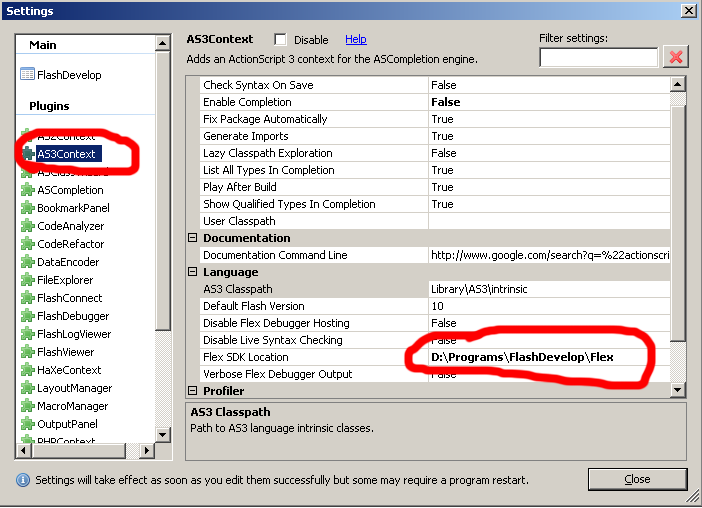
Then get Flex and install it somewhere (your FD folder is a good place).
Now we need to tell FD the location of Flex, which is the tool that we'll be using to compile (produce the SWC) our games.

  • 1.- Open FlashDevelop.      
  • 2.- Tools.
  • 3.- Program Settings.
  • 4.- AS3 Context.
  • 5.- Set Flex SDK Location to the folder where you installed Flex.
 
    Just one more download and we'll be ready...
    •  1: Download the Projector content debugger.
    •  2: Go to Tools ► Program Settings ► FlashViewer
    •  3: On the ''External Player Path'' field set the location of the EXE file that you downloaded.


    Now you have all the necessary tools to make a Flash game.

    Some recommendations before you start:
    • Type the code by yourself. Don't copy and paste. 
    • If you don't understand something, look for it on the Live Docs
    • Understanding is the key. If you understand how code works, you'll be able to do anything.

    Main                                        Chapter 1: The basics

    Chapter 1: The basics.

    This tutorial will cover:
    •  Importing graphics.
    • Adding stuff to the stage (screen).
    •  Tracing.
    • Using variables
    • Detecting keyboard usage.
    • Moving an object.
    Ok, let's get this started.
    Open FlashDevelop (FD).
    Project ► New Project ► AS3 Project
    Check the 'Create directory for project' box.
    Give it a name and click OK.
    Project ► Properties.
    Set Dimensions to 600 x 400. 
    Use the background color of your choice.
    Set framerate to 30.

    Now you have the basic layout of your game.

    On the right side, expand the 'src' folder and open (double-click) 'Main.as'.That file is your document class.

    The document class will be loaded as soon as your game is loaded.
    Let's take a quick look at it:

    import flash.stuff.stuff;  
    /*This allows us to use external classes in our code. 
           FD auto imports the required classes, so don't worry about it for now.*/
     
    /** Some text... */
           /*The parts between /* */ are comments. They don't affect our code
           but are really useful. 
           Commenting out your code is a good practice. */  
     
    public class Main extends Sprite {
    public function Main():void {
    code 
    }
    } 
          /*We have a class called 'Main', which extends the base class 'Sprite'.
          We'll get into details later.
          The function with the name of our class is the constructor. Its code will
          run as soon as an instance of the class is created.*/ 


    Ok, enough technical stuff for now. Time to start working on the game.

    Let's start by making graphics for our game. For this tutorial, we'll make a Pong-like one... Don't worry, the point of the tutorials is that you understand the code and once you finish it and with some practice, you'll be able to do pretty much anything that comes to your mind.

    Anyway...draw a rectangular paddle of 150x30 pixels.
    (cute, isn't it?)

    Now open your project's folder (if you don't know it, go to the window where you create a new project and check the 'Location' field.) Open the 'lib' folder and save the pic as 'paddle.png'.

    Now go to File ► New ► AS3 Document...
    We'll make a new class that will store all our media.

    Clear all the code of the new file and type the following:

    package{
       public class Assets {
                 [Embed (source = '../lib/paddle.png')] public static const Pad:Class;
         public function Assets() : void {
          }
       }
    }


    We'll be using the Embed metatag to import all our media. 
    There will be more examples along the tutorials.

    The 'public static' part will allow us to access the variable or constant from anywhere. In this example, our constant that references the paddle pic will be called 'Pad'.

    Save the file as 'Assets.as' (an ActionScript -AS- file must be named the same as the class it holds).
    Save it to your 'src' folder.

    Now that we imported the pic, we need to bring it to the stage.
    Create another AS3 file and delete the code in it. Then type:

    package{
    import flash.display.Bitmap;
    import flash.display.Sprite;
       public class Paddle extends Sprite {
                 private var pic:Bitmap = new Assets.Pad();
         public function Paddle():void{
          }
       }
    } 
    

    We declared a private variable (we can only access it from the class that holds it) with name 'pic'.
    Our variables can have almost any name, just don't start them with numbers or symbols other than underscore (_) and dollar ($).

    Our pic will be of type Bitmap (the type must be declared after the colon). Then we used the 'new' keyword to create an instance of the class 'Pad' which, as you remember, holds our pic.
    Creating an instance of a class is not enough to make it 'spawn', let's bring it to the stage.


    Change the constructor to:

    public function Paddle() : void {
       addEventListener(Event.ADDED_TO_STAGE, go);
          }
    

    Listeners allow our objects to respond to a determined situation.
    In this case, it will respond when the object is added to the stage.
    The text after the comma is the name of the function that will be called when the event is triggered.

    So, resuming, we're telling it to run the 'go' function when it's added to the stage.

    Now we need to make that function.
    Add the following below the constructor:

    private function go(e:Event) : void {
       removeEventListener(Event.ADDED_TO_STAGE, go);
       //We don't need our object to listent to that anymore, se we remove it. 
       addChild(pic);
      }


    All functions go below the constructor.
    The 'addChild()' method is used to add objects to the stage.

    Everything is ready. Once an instance of our class Paddle is added to the stage, it will add our pic to it.
    The problem is that there's nothing adding our Paddle to the stage...

    Our Paddle class should look like this:

    package{
    import flash.display.Bitmap;
    import flash.display.Sprite;
    import flash.events.Event; 
     
      public class Paddle extends Sprite {
                 private var pic:Bitmap = new Assets.Pad();
     
         public function Paddle() : void {
       addEventListener(Event.ADDED_TO_STAGE, go);
          }
     
    private function go(e:Event) : void {
       removeEventListener(Event.ADDED_TO_STAGE, go);
       addChild(pic);
        }
      }
    } 
    

    Now save it (you should save your work after any change) and go to the document class (Main.as).

    Below the line 'public class Main extends Sprite {' declare a reference to the paddle.

    private var paddle:Paddle;
    

    Then below the part that says 'entry point' type:

    paddle = new Paddle();


    This will create an instance of the Paddle class.
    In our Paddle class, we created an instance of the Pad class right away, just after declaring the variable.
    You can do it either way.

    Now that we have our paddle, let's move it to the stage. 
    Do you remember how?

    addChild(paddle);


    Our document class should look like this:

    package {
     import flash.display.Sprite;
     import flash.events.Event;
     
     /**
      * ...
      * @author Senekis
      */
     public class Main extends Sprite {
                    private var paddle:Paddle; 
     
      public function Main():void {
       if (stage) init();
       else addEventListener(Event.ADDED_TO_STAGE, init);
      }
     
      private function init(e:Event = null):void {
       removeEventListener(Event.ADDED_TO_STAGE, init);
       // entry point
                            paddle = new Paddle(); 
                            addChild(paddle); 
      }
     }
    }
    

    Save the file (Ctrl + s) and then run it (Ctrl + ENTER).
    You should see your paddle. ☺

    It spawned at the top left?
    That's because our stage is on the fourth quadrant
    of a cartesian system. Meaning (0,0) is at top-left corner.
     
    Head to the Paddle.as and go below the line where you typed 'addChild(pic)'. 
    Type this:

    y = stage.stageHeight - pic.height;
    x = stage.stageWidth * .5 - pic.width * .5;
    

    Some simple math using the 'width' and 'height' properties of our pic as well as the dimensions of our stage to center the paddle at the bottom of the screen.

    Looks better? Now we need to make it so the player can control it with the keyboard.

    stage.addEventListener(KeyboardEvent.KEY_DOWN, keyDownHandler, false, 0, true);
    

    This will let us know when a keyboard key is pressed.
    Let's make the function...

    private function keyDownHandler(e:KeyboardEvent):void {
          if (e.keyCode == 37 || e.keyCode == 65) {
            trace('Paddle is moving left');
         }
     }
    

    Note that we always tell the type of the event that triggers each function (KeyboardEvent in this case).
    The thing after the colon is the type that the function returns.
    We'll get into that in another chapter.


    if (e.keyCode == 37 || e.keyCode == 65) {
    This is known as a conditional.
    It works like this: If the condition between ( ) is evaluated as true,the code block between { } will run.

    In this case, if LEFT or 'A' are pressed (keyCodes 37 and 65) the code will run.
    || means OR, so it can translate to: 'if(LEFT or A are pressed)...'

    Then we have a trace. trace() is one of the most useful methods. It's a must when looking for bugs in your code and to know if something is working.

    Save it and run a test. Press left key or 'A' and you should see a message in the panel below.

    Tracing is good for testing and debugging, but now that we know it works, we need to make something happen when those keys are pressed.
    Let's add a new variable to our Paddle class:

    private var movingLeft:Boolean;
    

    That goes below the line where we declared the pic variable. Variables should be declared there.

    A Boolean is a value that can either be true or false.We'll use it in situations like this, where we want to know if something is happening (is the player pressing left or 'A'?).

    If you don't explicitly give a value to your boolean variable, its default value will be 'false'.
    Anyway, replace your trace statement for:

    if (!movingLeft) {
    movingLeft = true;
    }

    '!' means NOT, so it translates to: if(not movingLeft)...

    We're checking if it's not already moving left, and then if that evaluates to true, we tell it to make our movingLeft variable true.
    Now let's make something happen when movingLeft is true. Add this to the 'go' function:

    addEventListener(Event.ENTER_FRAME, enterFrame, false, 0, true);
    

    The code within an enter frame function will run every frame.
    At the start of our project, we set the framerate to 30, that means the code of the enter frame function will run 30 times/sec.

    Let's build the function...:

    private function enterFrame(e:Event):void {
            if (movingLeft) {
                      x -= speed; 
          }
    

    So... if we're pressing 'A' or left, its x value (horizontal position) will decrease by the value of the speed variable. So, let's declare that variable and give it a value:

    private var speed:int = 10;
    

    Data of type 'int' are integers.
    Save and test.

    The paddle should be moving! ☺
    But once it starts moving, it won't stop, so we need a way to fix that. Let's check for key release:

    stage.addEventListener(KeyboardEvent.KEY_UP, keyUpHandler, false, 0, true);
    

    Add it below the listener for KEY_DOWN.
    Then we make the function...

    private function keyUpHandler(e:KeyboardEvent):void {
                     if (e.keyCode == 37 || e.keyCode == 65) {
                            if (movingLeft) { 
                                  movingLeft = false; 
                            }
                     }


    Now test it. It should stop moving when the key is released.
    There's a new problem: If you hold the key down, the paddle will keep moving and get out of bounds, and while allowing stuff to get out of bounds may have a use in some applications, it wouldn't be nice to have such feature in a pong game, so let's fix that:

    private function enterFrame(e:Event):void {
            if (movingLeft) {       
                    if (x - speed >= 0) { 
                            x -= speed;  
                    }                
                    else {           
                            x = 0;   
                    }
            }
    

    What we did is to check if the paddle will get out of the screen if it keeps moving left, and if so, instead of moving it by the value of the speed variable, we move it to x = 0 (the left border of the stage). 


    An if...else block works like this: 
    If the condition is met, the first code block will run. If not, it will run the code block after the 'else'.


    Let's practice these 'else' blocks by adding movement to the right side.
    Change the keyDownHandler function to the following:

    private function keyDownHandler(e:KeyboardEvent):void {
                    if (e.keyCode == 37 || e.keyCode == 65) { 
                            if (!movingLeft) {                
                                    movingLeft = true;         
                            }
                    }
                    else if (e.keyCode == 39 || e.keyCode == 68) {  
                            if (!movingRight) {                 
                                    movingRight = true;      
                            }
                    }               
            }
    

    Key codes 39 and 68 correspond to RIGHT and 'D'.
    Go to the part where you declare variables and add a new boolean with name 'movingRight'.

    private var movingRight:Boolean;
    

    Now let's update the keyUpHandler and enterFrame function:

    private function keyUpHandler(e:KeyboardEvent):void {
                     if (e.keyCode == 37 || e.keyCode == 65) {
                            if (movingLeft) {     
                                  movingLeft = false; 
                            }
                     }
                      else if (e.keyCode == 39 || e.keyCode == 68) {
                            if (movingRight) {          
                                  movingRight = false; 
                            }    
                        }
                     }


    private function enterFrame(e:Event):void {
            if (movingLeft) {       
                    if (x - speed >= 0) {
                            x -= speed; 
                    }                
                    else {          
                            x = 0;   
                    }
            }
            else if (movingRight) {      
                    if (x + speed + pic.width <= 600) { 
                            x += speed;  
                    }                
                    else {           
                            x = 600 - pic.width;  
                    }
            }
    }    
    

    We just applied the same logic than before.
    Test it. you should be able to control the paddle with arrow keys (left and right) or A and D.


    That's pretty much it for this chapter. 
    Just add the following function to the Paddle class:

    private function die(e:Event):void {
            removeChild(pic);
            pic = null;
            stage.removeEventListener(KeyboardEvent.KEY_DOWN, keyDownHandler);
            stage.removeEventListener(KeyboardEvent.KEY_UP, keyUpHandler);
            removeEventListener(Event.ENTER_FRAME, enterFrame);
            removeEventListener(Event.REMOVED_FROM_STAGE, die);
           }
    

    And this line below the ENTER_FRAME listener:


    addEventListener(Event.REMOVED_FROM_STAGE, die, false, 0, true);
    

    We'll get into details about the purpose of this function on the Garbage Collection chapter, but it's good to already have the code there se we don't need to edit all our classes once we reach that chapter.


    Thanks for reading, I hope you're finding this tutorial useful and interesting. Feel free to leave comments. (:

     DOWNLOAD THE FILES: Click here


    Suggested practices

    Before moving on to the next chapter, it's suggested that you do the following exercise:

    • Make a new AS3 project.
    • Import three different graphics using the Embed metatag.
    • Create classes for each one and add them to the stage.
    • Add keyboard listeners to all of them.
    • First object should move left and right with LEFT and RIGHT keys.
    • Second object should move up and down with I and K.
    • Last object should move up, down, right and left with W,A,S and D. 

    Chapter 0                                                   Chapter 2